
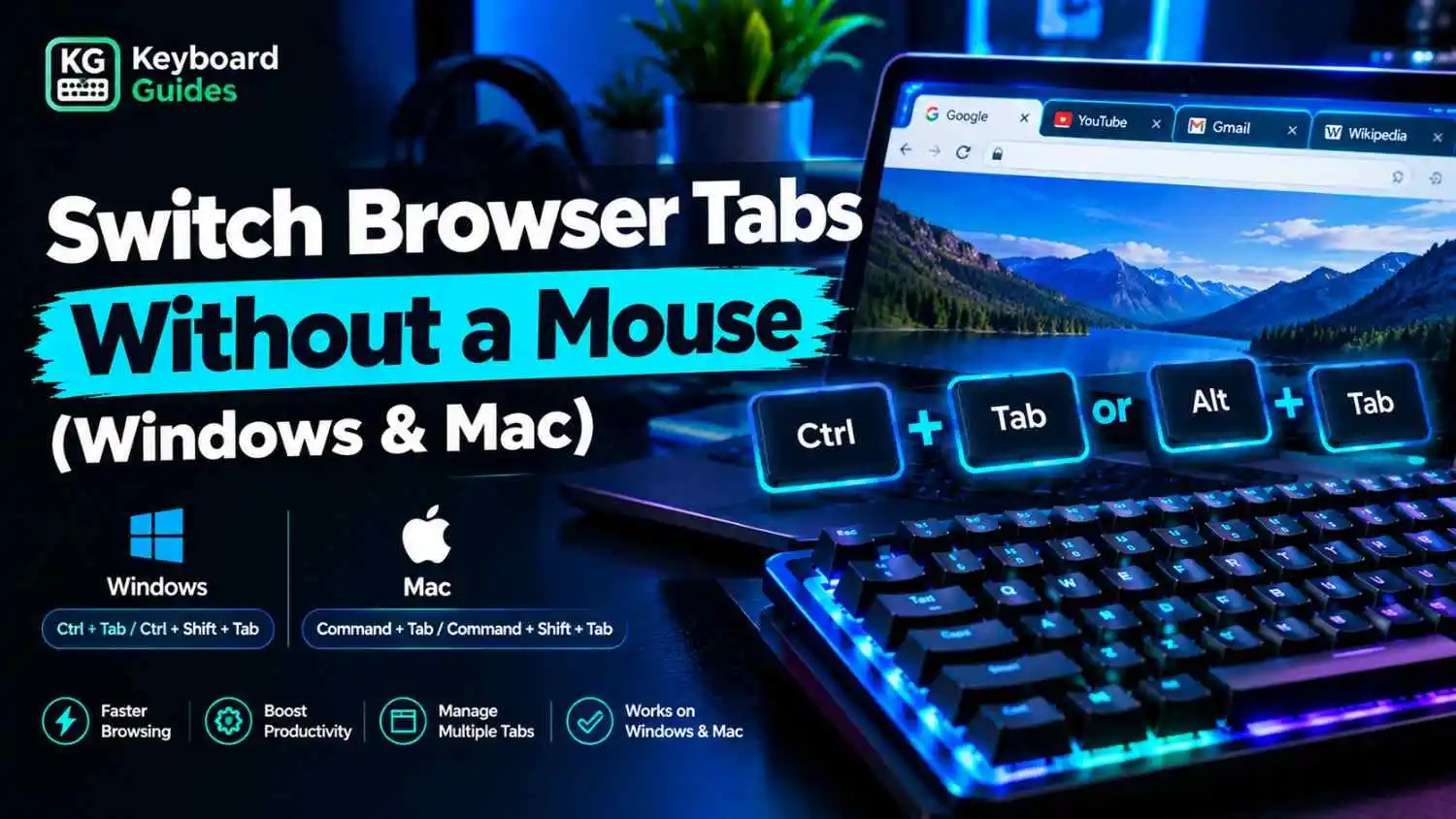
You can switch browser tabs using these keyboard shortcuts:
- Next tab (Windows/Linux): Ctrl + Tab
- Previous tab (Windows/Linux): Ctrl + Shift + Tab
- Next tab (Mac): Control + Tab in supported browsers
- Previous tab (Mac): Control + Shift + Tab in supported browsers
This guide covers tab-switching shortcuts for Chrome, Edge, Firefox, and Safari, including laptop keyboards and the difference between switching tabs and windows.
Keyboard Shortcuts to Switch Tabs Quickly
Good tab navigation saves time and cuts down on repetitive movements between the keyboard and the mouse. These shortcuts work in nearly every web browser on PC, laptop, and Mac.
| Action | Windows / Linux | Mac |
|---|---|---|
| Next tab | Ctrl + Tab or Ctrl + Page Down | Ctrl + Tab or Command + Option + → |
| Previous tab | Ctrl + Shift + Tab or Ctrl + Page Up | Ctrl + Shift + Tab or Command + Option + ← |
| Specific tab (1 to 8) | Ctrl + 1–8 | Command + 1–8 |
| Last tab | Ctrl + 9 | Command + 9 |
Switch to the Next Tab
Press Ctrl + Tab to move to the next tab on the right. When you reach the last tab, the shortcut loops back to the first one. Ctrl + Page Down does the same thing.
Switch to the Previous Tab
Press Ctrl + Shift + Tab to move to the previous tab on the left. This is the fastest way to cycle through tabs in reverse order. Ctrl + Page Up also works.
Jump to a Specific Tab
Hold Ctrl and press a number key from 1 to 8 to open that numbered tab, counting from the left. Ctrl + 9 always opens the last tab, no matter how many are open.
If you press a number higher than your tab count, nothing happens. Need a fresh tab first? Press Ctrl + T to open a new tab, and use our Close Tab Shortcut guide to close tabs or bring back a closed tab with Ctrl + Shift + T.
How to Switch Tabs in Different Browsers
Most browsers share the same core shortcut keys, but a few small differences are worth knowing. The shortcuts below use Windows keys unless noted.
Google Chrome
Google Chrome uses Ctrl + Tab and Ctrl + Shift + Tab to move through tabs, and Ctrl + 1–9 to jump to a numbered tab. Press Ctrl + Shift + A to search all your open tabs from a list.
To move the active tab itself, press Ctrl + Shift + Page Up or Page Down. For a private session, press Ctrl + Shift + N to open an Incognito window.
Microsoft Edge
Microsoft Edge is built on the same engine as Chrome, so Ctrl + Tab, Ctrl + Shift + Tab, and Ctrl + 1–9 all work the same way. Press Ctrl + Shift + A to open tab search, and use Ctrl + Shift + , to turn vertical tabs on or off.
Press Ctrl + Shift + N to open an InPrivate window, and Ctrl + N for a regular new browser window.
Mozilla Firefox
Mozilla Firefox supports Ctrl + Tab, Ctrl + Shift + Tab, and Ctrl + 1–9 on Windows. On Linux, Firefox uses Alt + 1–9 for numbered tabs. In Firefox settings you can choose to cycle tabs in recently used order.
To open a Firefox private window, press Ctrl + Shift + P (Command + Shift + P on Mac).
Safari on Mac
Safari works with Ctrl + Tab and Ctrl + Shift + Tab. You can also press Command + Shift + ] for the next tab and Command + Shift + [ for the previous one. Press Command + Shift + \ to see all your open tabs as tab previews.
By default, Command + 1–9 may open bookmarks instead of tabs. To change this, open Safari > Settings > Advanced and turn on the option to use these keys for tabs.
How to Switch Tabs on Mac With a Keyboard
Use the following keyboard shortcuts to switch tabs and manage browser tabs on a Mac. Some shortcuts vary by browser.
| Action | Keyboard Shortcut | Explanation |
|---|---|---|
| Next tab | Control + Tab | Move to the next tab in supported browsers. |
| Previous tab | Control + Shift + Tab | Return to the previous tab. |
| Next tab in Safari | Command + Shift + ] | Switch to the next tab in Safari. |
| Previous tab in Safari | Command + Shift + [ | Switch to the previous tab in Safari. |
| Jump to a specific tab | Command + 1–8 | Open a numbered tab in supported browsers. |
| Open the last tab | Command + 9 | Jump to the last tab in supported browsers. |
| Open a new tab | Command + T | Create a new browser tab. |
| Reopen a closed tab | Command + Shift + T | Restore the most recently closed tab. |
| Open a private window in Chrome or Edge | Command + Shift + N | Open a private browsing window. |
| Open a private window in Firefox | Command + Shift + P | Open a Firefox private browsing window. |
For more shortcuts, see our guide to keyboard shortcuts on Mac.
How to Switch Tabs on a Laptop Without Page Up or Page Down
If your laptop lacks dedicated Page Up and Page Down keys, use these keyboard shortcuts to navigate browser tabs.
| Action | Keyboard Shortcut | Explanation |
|---|---|---|
| Switch to the next tab | Ctrl + Tab | Move to the next browser tab. |
| Switch to the previous tab | Ctrl + Shift + Tab | Return to the previous browser tab. |
| Use Page Down | Ctrl + Fn + Down Arrow | May work on laptops where Fn + Down Arrow acts as Page Down. |
| Use Page Up | Ctrl + Fn + Up Arrow | May work on laptops where Fn + Up Arrow acts as Page Up. |
Tip: The Fn key combinations vary by laptop model. If a shortcut doesn’t work, check your keyboard layout or test the keys with our Keyboard Tester. You can also explore our guide to Windows 11 keyboard shortcuts for more useful combinations.
Switching Browser Tabs vs. Switching Windows
A browser tab is a webpage open inside a browser window. Tab switching moves between webpages in the same window, while window switching moves between separate application windows. Knowing the difference helps you choose the right shortcut.
| Task | Windows | Mac |
|---|---|---|
| Switch browser tabs | Ctrl + Tab | Control + Tab or browser-specific alternatives |
| Switch between apps | Alt + Tab | Command + Tab |
| View open windows and desktops | Win + Tab (Task View) | Mission Control shortcut, depending on settings |
| Open a taskbar app | Win + Number | No direct equivalent |
| Switch virtual desktops | Win + Ctrl + Left/Right Arrow | Control + Left/Right Arrow, depending on settings |
Frequently Asked Questions
What is the shortcut to switch between tabs?
Press Ctrl + Tab to go to the next tab and Ctrl + Shift + Tab to go to the previous one. On a Mac, Command + Option + Arrow keys also work in Chrome, Edge, and Firefox.
How do I switch to the previous tab?
Press Ctrl + Shift + Tab, or Ctrl + Page Up. On a Mac, use Command + Option + Left Arrow, or Command + Shift + [ in Safari.
How do I switch directly to the last tab?
Press Ctrl + 9 on Windows or Command + 9 on Mac. It always opens the last tab, even if you have more than nine open.
How do I switch tabs without a mouse?
Use keyboard-only navigation: Ctrl + Tab for the next tab, Ctrl + Shift + Tab for the previous one, and Ctrl + 1–8 to jump to a specific tab. You can also press Ctrl + T for a new tab and Ctrl + W to close one.
What is the difference between Alt + Tab and Ctrl + Tab?
Ctrl + Tab switches between browser tabs inside one window. Alt + Tab switches between open windows and apps on your computer.