

When the arrow keys stop moving from cell to cell in Microsoft Excel, they may scroll the worksheet instead or appear to do nothing. The most common cause is Scroll Lock, but editing mode, Excel add-ins, Windows settings, or a keyboard problem can also affect navigation.
This guide explains the most common causes and shows you how to fix arrow keys that are not working in Excel, step by step.
If your arrow keys do not work in other apps either, see our guide on why is my keyboard not working first.

Why Are the Arrow Keys Not Working in Excel?
An Excel keyboard problem like this can have several causes. Check the following in order because Scroll Lock and cell editing mode are among the most common reasons.
Scroll Lock Is Turned On
When Scroll Lock is on, the arrow keys scroll the entire Excel worksheet instead of moving the active cell. This is the most common reason for arrow keys scrolling instead of moving between cells.
Excel may show “Scroll Lock” in the status bar at the bottom of the window. If you see it, Scroll Lock is active.
Excel Is in Cell Editing Mode
If you are typing inside a cell, the arrow keys move the cursor within the cell’s text instead of moving to another cell.
This is normal Excel behavior and can happen if you press F2 or double-click a cell by mistake. Press Enter or Esc to leave editing mode.
Frozen Panes or Worksheet Settings
Frozen panes normally do not disable the arrow keys, but they can make scrolling and cell movement look different because certain rows or columns remain visible.
A protected worksheet can also prevent you from selecting or editing certain cells. Checking these settings can help if Excel navigation seems unusual.
Excel Add-Ins or Background Programs
An Excel add-in or third-party program can sometimes interfere with keyboard input. Clipboard managers, screen capture software, and other keyboard utilities may cause conflicts with Excel.
Temporarily disabling these programs can help identify the source of the problem.
Windows Keyboard or Accessibility Settings
Windows accessibility features such as Sticky Keys and Filter Keys can change how keyboard input is handled. In some cases, they may cause unexpected keyboard behavior in Excel.
Checking these settings is useful if the arrow keys behave incorrectly in other Windows applications too.
How to Fix Arrow Keys Not Working in Excel
Try these fixes one at a time and test the arrow keys after each step.
1. Turn Off Scroll Lock
Press the Scroll Lock key, often marked “ScrLk,” once. Then press an arrow key and check whether the active cell moves.
If your keyboard does not have a Scroll Lock key, open the Windows On-Screen Keyboard by pressing Windows + Ctrl + O. Find ScrLk and click it to turn Scroll Lock off.
Some laptops use a secondary key combination with the Fn key for Scroll Lock, so check your keyboard manufacturer’s instructions if necessary.
2. Exit Excel Editing Mode
Look at the Excel status bar. If it shows Edit, you are currently editing a cell.
Press Enter to save the change and leave editing mode, or press Esc to cancel the change and exit.
Once editing mode is closed, the arrow keys should move the active cell again.
3. Unfreeze Panes
Frozen panes do not normally stop arrow keys from working, but removing them can help if worksheet navigation looks unusual.
In Excel, go to:
View > Freeze Panes > Unfreeze Panes
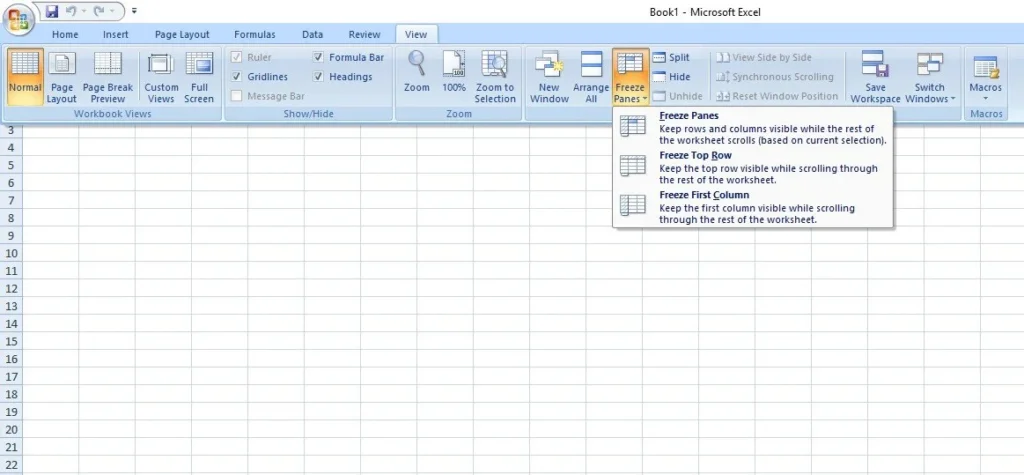
This removes frozen rows and columns from the worksheet.
If the worksheet is protected, check Review > Unprotect Sheet. You may need the appropriate password or permission to remove protection.
4. Disable Excel Add-Ins
An Excel add-in may interfere with keyboard input. To test for an add-in conflict:
- Open Excel and go to File > Options > Add-ins.
- At the bottom, select COM Add-ins next to Manage.
- Click Go.
- Untick the active add-ins.
- Click OK and restart Excel.
Test the arrow keys again. If they work, enable the add-ins one at a time to identify which one is causing the problem.
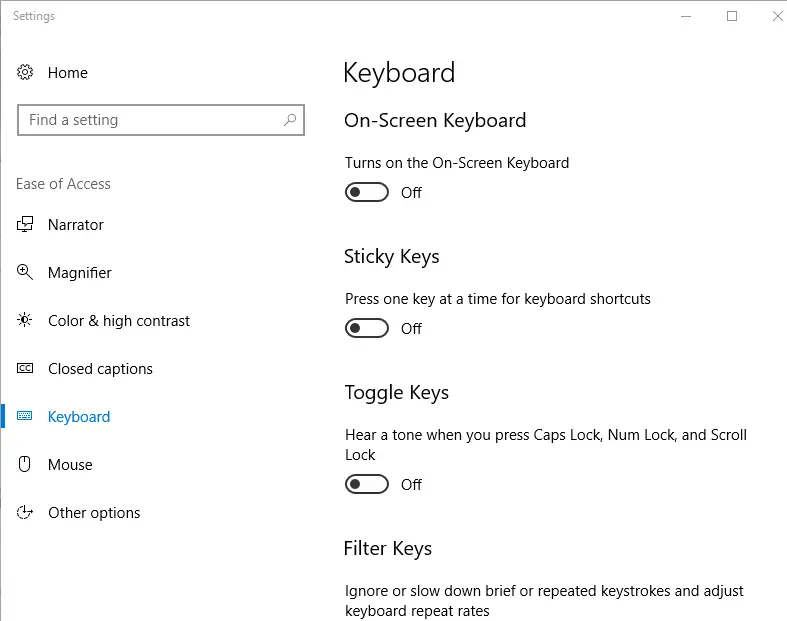
5. Check Sticky Keys and Filter Keys
Open Windows Settings > Accessibility > Keyboard.
Check Sticky Keys and Filter Keys and turn them off if they are enabled.
On older versions of Windows, these options may be located under Ease of Access.
After changing the settings, open Excel and test the arrow keys again.
6. Restart Excel and Your Computer
Close Excel completely and open it again. Temporary software glitches can sometimes affect keyboard input.
If the problem continues, restart your computer. After restarting, test the arrow keys in Excel before opening other programs that might interfere with keyboard input.
What to Do If Arrow Keys Still Don’t Work
If the basic fixes do not solve the problem, the issue may involve Microsoft Office, Windows, another program, or the physical keyboard.
Update or Repair Microsoft Excel
Open Excel and go to:
File > Account > Update Options > Update Now
Installing the latest Office updates can fix software bugs and compatibility problems.
If updating does not help, try repairing Microsoft 365 or Office. In Windows, go to Settings > Apps, find Microsoft 365 or Office, select Modify, and run a Quick Repair.
If the problem continues after repair, an Office reinstallation may be necessary.
Check Background Programs
Press Ctrl + Shift + Esc to open Windows Task Manager.
Look for programs that may interact with keyboard input, such as:
- Clipboard managers
- Screen capture software
- Keyboard customization tools
- Macro utilities
- Other third-party input software
Close non-essential programs one at a time and test Excel after each change. This can help identify a software conflict.
Start Excel in Safe Mode
Excel Safe Mode starts Excel without most add-ins and custom startup settings. This can help determine whether an add-in or customization is causing the problem.
Press Windows + R, type:
excel /safe
Then press Enter.
You can also hold Ctrl while opening Excel.
If the arrow keys work normally in Safe Mode, an add-in or custom setting is likely responsible. If they still do not work, consider repairing Microsoft 365 or checking Windows and your keyboard.
Test With Another Keyboard
Connect another keyboard to your computer and test the arrow keys in Excel.
You can also use the Windows On-Screen Keyboard as a quick test.
If the arrow keys work with another keyboard but not your original one, the physical keyboard may be the problem. You can also use our Keyboard Checker to see whether individual arrow keys register correctly.
If you are using a wireless keyboard, see our guide on wireless keyboard not working for connection and battery-related fixes.
How to Navigate Excel Without Arrow Keys
You can continue working in Excel with other keyboard shortcuts while troubleshooting the arrow keys.
Tab and Shift + Tab
Press Tab to move one cell to the right.
Press Shift + Tab to move one cell to the left.
These shortcuts are useful for moving across a row when the arrow keys are unavailable.
Enter and Shift + Enter
Press Enter to move down one cell.
Press Shift + Enter to move up one cell.
You can also change the direction of the Enter key in File > Options > Advanced.
Ctrl + Arrow Keys for Faster Navigation
When the arrow keys are working, press Ctrl + an arrow key to jump to the edge of a data region.
For example, pressing Ctrl + Down Arrow can quickly move to the bottom of a continuous block of data.
Because this shortcut still uses the arrow keys, it is also useful for testing whether your Excel navigation problem has been fixed.
Frequently Asked Questions
Why does the entire Excel sheet move when I press the arrow keys?
Scroll Lock is probably turned on. When Scroll Lock is active, the arrow keys scroll the worksheet instead of moving the active cell.
Turn off Scroll Lock using the keyboard’s ScrLk key or the Windows On-Screen Keyboard.
Extend Selection mode can also change selection behavior. If it is active, press F8 or Esc to turn it off.
How do I turn off Scroll Lock in Excel?
Press the Scroll Lock (ScrLk) key on your keyboard once.
If Excel displays “Scroll Lock” in the status bar, check it again after pressing the key. The indicator should disappear when Scroll Lock is disabled.
How do I turn off Scroll Lock without a Scroll Lock key?
Open the Windows On-Screen Keyboard by pressing Windows + Ctrl + O.
Find ScrLk and click it to turn Scroll Lock off.
You can also search for On-Screen Keyboard from the Windows Start menu.
Can Sticky Keys affect arrow keys in Excel?
Sticky Keys and Filter Keys can change how Windows handles keyboard input. They are not the most common cause of Excel arrow-key problems, but disabling them can help when keyboard behavior is unusual.
Go to Windows Settings > Accessibility > Keyboard and turn them off if they are enabled.
How can I navigate Excel without arrow keys?
You can use Tab and Shift + Tab to move horizontally, and Enter and Shift + Enter to move vertically.
You can also click cells with your mouse or enter a cell reference into Excel’s Name Box to jump directly to a specific cell.
Why are my arrow keys not working even after turning off Scroll Lock?
You may still be in cell editing mode, Extend Selection mode may be active, or an Excel add-in or background program could be interfering with keyboard input.
Try pressing Esc, checking your Excel add-ins, and starting Excel in Safe Mode. If the problem continues, test another keyboard and consider repairing Microsoft Office.
Conclusion
Most Excel arrow-key problems are caused by settings or software rather than a damaged keyboard. Start by checking Scroll Lock, then exit editing mode and check Excel, Windows, and add-in settings.
If the arrow keys still do not work, update or repair Office, test Excel in Safe Mode, close conflicting background programs, or try another keyboard. These steps should help you identify the cause and restore normal cell navigation in Excel.