
A keyboard can stop working because of a loose connection, a low battery, incorrect settings, a driver problem, or physical damage. If your keyboard suddenly stops responding, start by checking its power and connection, then restart your computer.
| Keyboard Problem | What to Check | Possible Cause |
|---|---|---|
| Keyboard is completely unresponsive | USB connection, battery, USB port | Power or connection problem |
| Some keys are not working | Dust, crumbs, debris, switches | Physical problem |
| Wireless keyboard is not working | Battery, Bluetooth, USB receiver | Wireless connection |
| Keyboard works on another computer | Drivers, settings, USB port | Computer or software problem |
| Keyboard does not work on any computer | Cable, battery, hardware | Faulty keyboard |
| Keyboard types wrong characters | Keyboard layout, input language | Keyboard settings |
| Keyboard feels slow or misses key presses | Filter Keys, Sticky Keys | Accessibility settings |
| Keyboard stopped working after an update | Driver, Windows settings | Driver or software issue |
| USB keyboard is not detected | USB port, cable, USB connection | USB connection problem |
| Keyboard stopped working after a spill | Liquid, switches, internal hardware | Liquid damage |
Check the Keyboard Connection and Power
Start by checking the keyboard connection and power if the keyboard won’t connect or suddenly becomes unresponsive. For a wired keyboard, check the USB cable, USB port, and damaged cable for a loose connection. For a wireless keyboard, check the battery, rechargeable battery, power supply, or replaceable batteries if the keyboard appears dead. If you are using a wireless model, see our guide on Wireless Keyboard Not Working for more Bluetooth, battery, and receiver troubleshooting.
If your keyboard uses Bluetooth, turn Bluetooth off and on again and try Bluetooth reconnection or pairing again. For a USB receiver, make sure it is securely connected and recognized. If your wireless keyboard is not working, replace or charge the battery; if a USB keyboard is not working, try another USB port and avoid a faulty USB hub while testing.
Restart Your Computer
A simple restart can fix a keyboard problem caused by a temporary software issue or frozen application. Restart your computer or laptop and check whether the keyboard works after Windows or Mac starts again. If you are using a Mac and the problem continues, see our guide on Mac Keyboard Not Working for Mac-specific troubleshooting.
Some keyboards also support a keyboard reset using an Esc key reset procedure. Turn the keyboard off or unplug it, hold the Esc key, reconnect or turn it on, and release the key after several seconds. If the keyboard stops responding again, continue with the connection, settings, and driver checks.
Check if the Keyboard Is Disabled
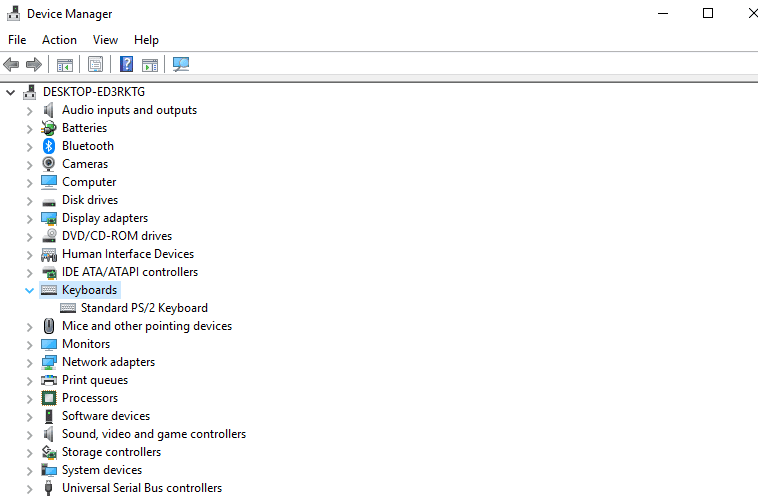
Windows may fail to recognize a keyboard because of a driver or device problem. If you have a disabled keyboard or the keyboard is not detected, open Device Manager, expand Keyboards, and look for your keyboard device or HID keyboard device.
If the device is disabled, enable it from its properties or context menu. If it does not appear, use Scan for hardware changes so Windows can search for connected hardware again. If the keyboard remains undetected, check the keyboard driver, USB connection, Bluetooth connection, and keyboard hardware.
Check Keyboard Settings
Incorrect keyboard settings can make a working keyboard appear faulty. If your keyboard types the wrong characters, check the keyboard layout, input language, and Windows input settings. Make sure the selected layout matches your physical keyboard. If you are troubleshooting a laptop, our guide on Laptop Keyboard Not Working also covers laptop-specific keyboard settings and common Fn-key issues.
Also check Accessibility settings if specific keys or keyboard shortcuts behave incorrectly. For number-pad problems, check Num Lock; on some laptops, check Fn Lock because the Fn key can change other key functions. If the keyboard layout problem continues, test the keyboard on another computer.
Turn Off Filter Keys
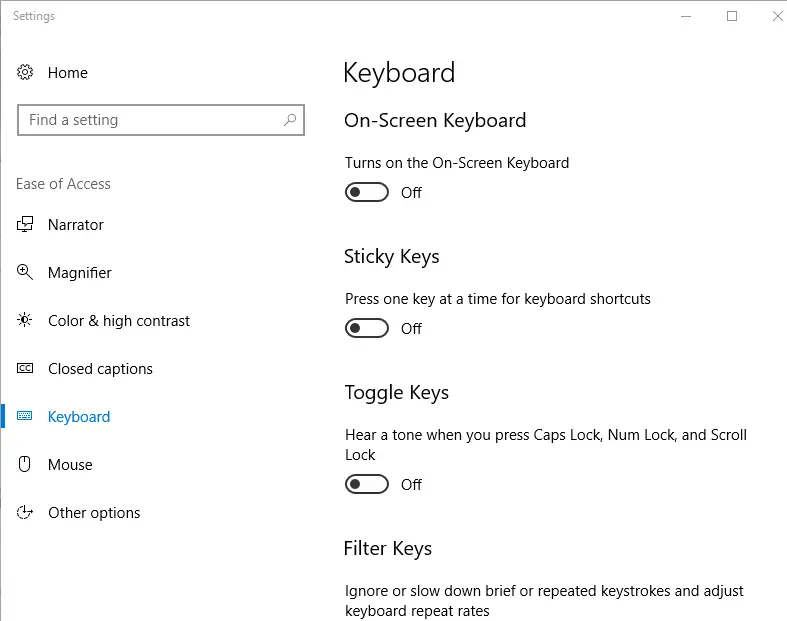
Filter Keys and Sticky Keys are Windows Accessibility features that change how your Keyboard responds to repeated or held-down keys. If Filter Keys is enabled, your keyboard may seem slow or unresponsive, while Sticky Keys enabled can affect modifier keys such as the Ctrl key, keyboard arrows, and keyboard shortcuts.
To turn off Filter Keys, open Settings > Accessibility > Keyboard in Windows and switch off Filter Keys and Sticky Keys. You can also manage these keyboard accessibility options through Control Panel > Ease of Access. If the Ctrl key is not working or your keyboard arrows are not working, check these disabled keyboard features before changing drivers.
Update or Reinstall the Keyboard Driver
A keyboard driver allows Windows to communicate with the keyboard. If the driver is missing, corrupted, outdated, or causing a conflict, the keyboard may stop responding. This can also happen after a Windows update or when using a laptop keyboard.
Action steps:
- Open Device Manager in Windows.
- Expand the Keyboards section.
- Right-click your keyboard device and select Update driver.
- Choose Search automatically for drivers.
- If the problem continues, select Uninstall device.
- Restart your computer and let Windows reinstall the driver.
- If the keyboard stopped working immediately after a driver update, try rolling back the driver.
Try a Different USB Port
If your USB keyboard is not working, the problem may be with the USB port, cable, or connection rather than the keyboard itself. A faulty port can prevent Windows from detecting the keyboard even when the keyboard is working correctly.
Action steps:
- Unplug the keyboard from the current USB port.
- Check the USB cable and connector for visible damage.
- Connect the keyboard directly to another USB port.
- Wait a few seconds for Windows to detect the device.
- Press several keys to test the keyboard.
- Avoid using a USB hub or dock while testing.
- If possible, test the keyboard on another computer.
If the keyboard works in another port, the original USB port or connection may be causing the problem.
Test the Keyboard on Another Computer
Testing the keyboard on another computer or laptop is one of the simplest ways to separate a keyboard hardware problem from a computer or software problem. Connect it using the same USB cable or wireless connection and test several keys.
If the keyboard works on another computer:
- The keyboard hardware is probably functioning.
- Check the original computer’s USB port.
- Check the keyboard driver and Windows settings.
- For wireless models, check Bluetooth or the USB receiver.
- If the problem is limited to a laptop, see our Laptop Keyboard Not Working guide.
If the keyboard does not work on another computer:
- Check the keyboard cable or USB connector.
- Check the battery if it is wireless.
- Look for physical damage or liquid damage.
- Test individual keys with an online keyboard tester.
- The keyboard itself may have a hardware failure.
Check for Physical Damage or Debris
If some keys are not working, dust, crumbs, dirt, or liquid may be trapped underneath them. Common symptoms include dead keys, stuck keys, loose keys, or a space bar or Shift key that does not respond correctly.
Cleaning steps:
- Turn off the keyboard or unplug it from the computer.
- Turn the keyboard upside down and gently shake out loose debris.
- Use compressed air to blow dust from between the keys.
- Use a soft brush around individual keys.
- Use a cotton swab to clean around hard-to-reach areas.
- Wipe the surface with a lint-free cloth.
- Use a mini vacuum carefully to remove loose crumbs.
- Do not pour or spray liquid directly onto the keyboard.
For detailed instructions, see our guide on How to Clean a Keyboard Properly Without Damage. If the keyboard stopped working after a liquid spill, disconnect it from power immediately and avoid using additional liquid while cleaning.
Use an On-Screen Keyboard
If your physical keyboard is completely unresponsive, an on-screen keyboard or virtual keyboard provides a temporary keyboard alternative. It allows virtual input using your mouse, which can help you access settings and continue troubleshooting without a physical keyboard.
In Windows 11, open Settings > Accessibility > Keyboard and select Use the On-Screen Keyboard, or search from the Windows Start menu. In Windows 10, open Ease of Access > Keyboard and enable the feature, or press Windows + Ctrl + O. On Mac, open System Settings > Accessibility > Keyboard. This is useful when you need to use a keyboard without a physical keyboard.
Test Your Keyboard Online
An online keyboard tester can check whether individual keyboard keys are registering correctly. It is useful when you have some keys not working, inconsistent key response, or want to identify a faulty key before replacing the keyboard.
Open our Keyboard Checker and press each key on your keyboard. The tester can detect key presses and help you check keyboard functionality directly in your browser. This is especially useful for identifying dead or unresponsive keys without installing additional software.
When You Need to Replace the Keyboard
You may need a keyboard replacement when the keyboard has serious physical damage, repeated failures, or does not work on another computer. Before replacing it, check the connection, USB port, battery, driver, and physical condition.
Consider replacement when:
- The keyboard does not work on any computer.
- The USB connector or keyboard cable is physically damaged.
- Multiple keys remain dead after cleaning and troubleshooting.
- The keyboard has severe liquid damage.
- Internal switches or other hardware have failed.
- A wireless keyboard has a confirmed hardware problem after checking its battery and connection.
- The keyboard has repeated failures that are not caused by software.
For laptop users, replacement can be different from replacing an external keyboard. If you are checking the potential repair expense, our Laptop Keyboard Replacement Cost article can provide more specific information.
Frequently Asked Questions
Why is my keyboard not working but my mouse is?
If the keyboard is not working but the mouse is, check the keyboard’s USB port, USB connection, battery, wireless connection, and keyboard driver. Testing the keyboard on another computer can help determine whether the problem is the keyboard or the computer.
Why are some keys on my keyboard not working?
If some keyboard keys are not working, check for dust, crumbs, debris, liquid damage, stuck keys, and physical damage. Damaged keyboard switches can also cause dead keys or inconsistent key response.
Why is my keyboard not typing?
If your keyboard is not typing, check the connection, keyboard settings, Filter Keys, and keyboard driver. You can also use the on-screen keyboard to determine whether the problem is limited to the physical keyboard.
Why is my wireless keyboard not working?
If your wireless keyboard is not working, check the battery and wireless connection first. For Bluetooth models, reconnect or pair the keyboard again. For models using a USB receiver, make sure the receiver is properly connected.
Why is my keyboard not working after an update?
If your keyboard is not working after an update, check Windows Update, the keyboard driver, and recent system changes. A changed setting, software bug, or driver problem can stop the keyboard from responding. If the problem began after a driver update, try a driver rollback.
How do I enable my keyboard again?
To enable a disabled keyboard, open Device Manager and expand the Keyboards section. Check whether the keyboard device is disabled, then enable it and update or reinstall the driver if Windows still does not detect the keyboard.