
Em Dash Shortcut
An em dash (—) is a long punctuation mark used to separate or emphasize parts of a sentence. If you need to type one quickly, the shortcut depends on your device or app. Below are the fastest em dash shortcuts for Windows, Mac, Microsoft Word, and Google Docs, plus a quick copy-and-paste option.
| Platform | Em Dash Shortcut |
|---|---|
| Windows | Alt + 0151 |
| Mac | Option + Shift + - |
| Microsoft Word | Ctrl + Alt + - on the numeric keypad |
| Google Docs | Insert → Special characters → search “em dash” |
| Copy & Paste | — |
Need ≠ next? See our quick guide to the [Not Equal Sign].
Em Dash Shortcut on Windows
The easiest way to type an em dash (—) on Windows is with an Alt code using the numeric keypad. Make sure Num Lock is turned on, then hold the Alt key and type 0151 on the numeric keypad. Release Alt, and the em dash will appear.
Windows em dash shortcut: Alt + 0151 → —
- Place the cursor where you want the em dash.
- Turn on Num Lock.
- Hold down the Alt key.
- Type 0151 using the numeric keypad.
- Release Alt.
The em dash — should appear immediately.
Windows Laptops Without a Numeric Keypad
Many compact laptops do not have a dedicated numeric keypad, so Alt + 0151 may not work directly. In that case, you can use Character Map, your application’s symbol or special-character menu, or simply copy the em dash here: —.
Em Dash Shortcut on a Mac
To type an em dash (—) on a Mac, press Option + Shift + – (hyphen) at the same time. The em dash will appear wherever your cursor is placed.
Mac em dash shortcut: Option + Shift + – → —
- Place your cursor where you want the em dash.
- Press and hold Option (⌥) and Shift (⇧).
- Press the – (hyphen) key.
- Release the keys, and the em dash (—) will appear.
For comparison, the Mac shortcut for an en dash (–) is Option + – (hyphen).
| Dash | Mac Shortcut |
|---|---|
| Em dash (—) | Option + Shift + – |
| En dash (–) | Option + – |
Done typing? Learn the fastest close tab shortcut for Windows, Mac, and your browser.
How to Type an Em Dash in Microsoft Word
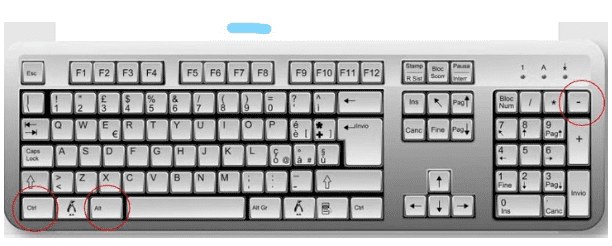
Microsoft Word gives you several ways to type an em dash (—). The quickest keyboard shortcut is Ctrl + Alt + – using the numeric keypad.
Word em dash shortcut: Ctrl + Alt + – → —
- Place your cursor where you want the em dash.
- Hold Ctrl + Alt.
- Press the – (minus) key on the numeric keypad.
- The em dash (—) will appear.
You can also type two hyphens (--) between words, and Word may automatically convert them to an em dash if AutoFormat settings are enabled.
| Method | Word Shortcut |
|---|---|
| Em dash | Ctrl + Alt + – (numeric keypad) |
| AutoFormat | Type two hyphens (--) |
| Insert menu | Insert → Symbol → More Symbols |
Want to test your typing speed after learning these shortcuts? Try our typing test to measure your speed and accuracy.
How to Type an Em Dash in Google Docs
Google Docs does not have a default keyboard shortcut specifically for an em dash (—), but you can quickly insert one using the Special characters menu.
Google Docs em dash: Insert → Special characters → search “em dash”
- Place your cursor where you want the em dash.
- Click Insert in the top menu.
- Select Special characters.
- Search for em dash.
- Click the — symbol to insert it.
You can also copy an em dash from this page and paste it directly into your Google Docs document: —
| Method | Google Docs |
|---|---|
| Special characters | Insert → Special characters |
| Search | Type em dash |
| Copy & paste | — |
What Is an Em Dash?
An em dash (—) is a punctuation mark used to create a strong break in a sentence. It can add emphasis, show an interruption, or set off additional information without starting a new sentence.
What Punctuation Can an Em Dash Replace?
An em dash can sometimes replace commas, parentheses, or a colon, depending on the sentence. It creates a stronger break than a comma and can make additional information stand out.
For example:
- Commas: The keyboard, which I bought yesterday, is mechanical.
- Em dashes: The keyboard—which I bought yesterday—is mechanical.
An em dash is especially useful when you want to emphasize a phrase or create a clear interruption in the flow of a sentence.
Not sure where a symbol is located? Check the US keyboard layout and see where common keys and symbols are found.
Em Dash vs. En Dash: Differences and When to Use Each
The em dash (—) and en dash (–) look similar, but they have different purposes.
An em dash (—) creates a strong break in a sentence or sets off additional information. For example:
The new keyboard—released this week—is already popular.
An en dash (–) is commonly used to show a range of numbers, dates, or times, such as Monday–Friday or 10–20 minutes. It can also connect related words or terms, such as New York–London flight.
| Symbol | Name | Common Use | Example |
|---|---|---|---|
| — | Em dash | Strong break or emphasis | The keyboard—my favorite—was on sale. |
| – | En dash | Ranges or connections | Monday–Friday |
| – | Hyphen | Compound words | well-known keyboard |
If you frequently type symbols while working, you can also use our Keyboard Counter to check your typing speed and key presses.
When to Use an Em Dash
How Do I Correctly Format an Em Dash?
In most American English writing, an em dash (—) is written without spaces on either side. It can separate a phrase, add emphasis, or show an interruption within a sentence.
Example:
The keyboard—which I bought recently—is surprisingly quiet.
Some style guides, particularly in British English, may use spaces around an em dash. When following a specific publication or academic style, use the formatting rules required by that style guide.
For everyday writing, the safest approach is to use the em dash without spaces: word—word.
Copy and Paste an Em Dash
Need an em dash quickly? Copy the symbol below and paste it wherever you need it:
Em dash: —
You can copy the em dash directly from this page and paste it into Word, Google Docs, email, social media, or any text field that supports the character.
Em dash copy and paste: —
For comparison:
- Em dash: —
- En dash: –
- Hyphen: –
If you use em dashes frequently, learning the em dash keyboard shortcut for your device can be faster than copying and pasting each time.
Need another useful keyboard symbol? Learn how to type the diameter symbol (⌀) on different devices.
Frequently Asked Questions About Em Dash Shortcuts
How do I type an em dash?
On Windows, press Alt + 0151 using the numeric keypad. On Mac, press Option + Shift + –. You can also insert an em dash through the symbol menu in apps such as Microsoft Word and Google Docs.
What does Alt 0151 do?
Alt + 0151 inserts an em dash (—) on Windows when you use the numeric keypad with Num Lock enabled.
What is (-) used for?
The hyphen (-) is mainly used to connect words in compound terms, such as well-known or keyboard-friendly. It is different from an en dash (–) and an em dash (—).
How do I type an em dash in Word?
In Microsoft Word, press Ctrl + Alt + – using the numeric keypad. You can also type two hyphens (--) between words, and Word may automatically convert them into an em dash when AutoFormat is enabled.
Is there a keyboard shortcut for an em dash?
Yes. The shortcut depends on your device or application. On Windows, use Alt + 0151; on Mac, use Option + Shift + –. In Microsoft Word, you can also use Ctrl + Alt + – with the numeric keypad.
What does Ctrl + Shift + N do in Word?
In Microsoft Word, Ctrl + Shift + N applies the Normal style to the selected text or the paragraph where the cursor is placed. It is not an em dash shortcut.