
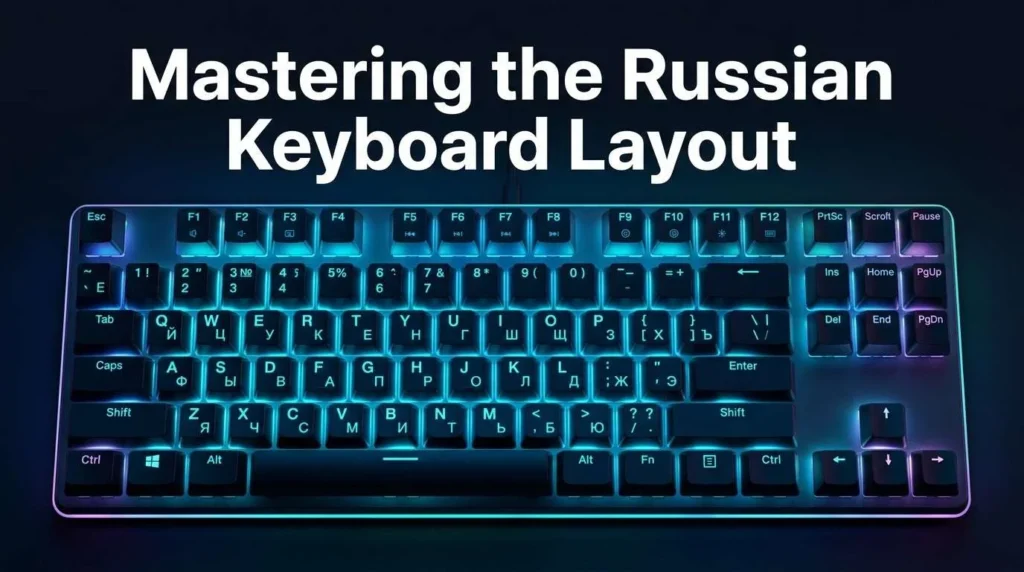
The Russian keyboard layout arranges the Cyrillic alphabet in a different order from the English QWERTY layout. The standard Russian layout is called ЙЦУКЕН, named after the first six letters on its top letter row.
You can use this layout on a regular English keyboard by adding Russian as an input language in your operating system. This guide explains the Russian keyboard chart, English-to-Cyrillic key mapping, phonetic layouts, and how to type Russian on Windows, Mac, and mobile devices.
If you want to understand how keyboard layouts work in general, see our guide to keyboard layouts.
What Is the Russian Keyboard Layout?
The Russian alphabet uses 33 Cyrillic letters, while the English alphabet has 26 Latin letters. The standard Russian keyboard layout arranges these Cyrillic letters across the keyboard, including positions that produce letters rather than punctuation in English.
The name ЙЦУКЕН comes from the first six letters on the top letter row: Й, Ц, У, К, Е, and Н. It serves the same naming purpose as QWERTY does for English keyboards.
Some Russian letters appear on the same physical keys as English letters, but the letters do not match one-to-one. For example, pressing Q with the standard Russian layout active produces Й, while pressing A produces Ф.
The active software layout determines which character appears. You do not need to buy a Russian keyboard to type in Cyrillic.
Russian Keyboard Layout Chart
The standard Russian keyboard layout, called ЙЦУКЕН, uses different key positions from the English QWERTY layout. This chart shows where Russian Cyrillic letters appear on a typical US English keyboard, along with key mappings, punctuation, and pronunciation tips.
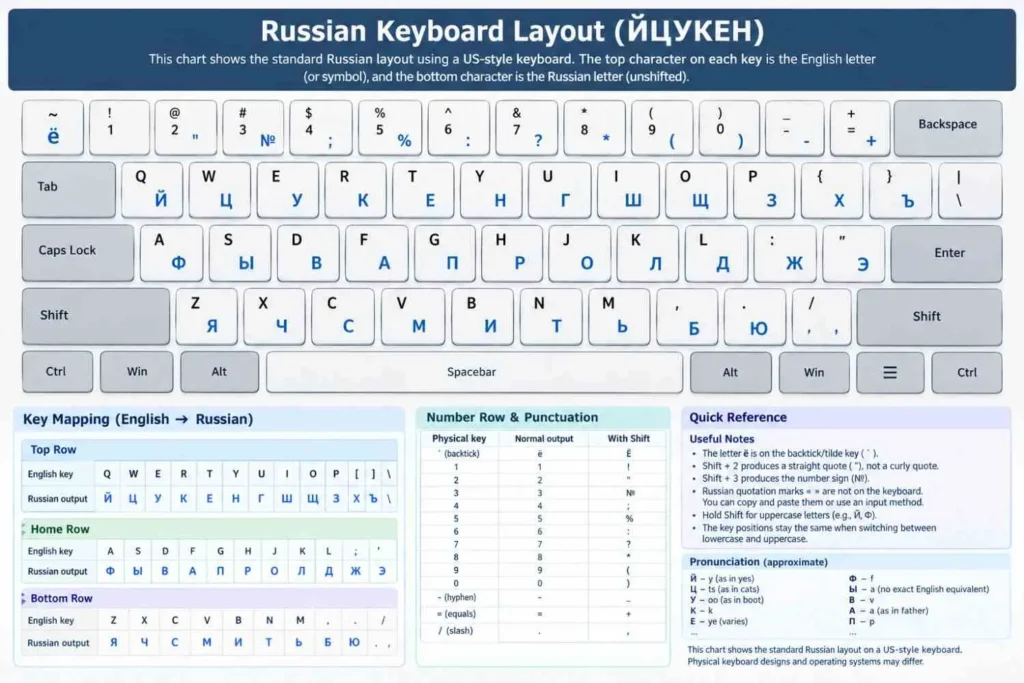
Use this chart as a reference while learning the Russian key positions. You can type Russian on a regular English keyboard after adding Russian as an input language; a separate Russian physical keyboard is not required.
Lowercase and Uppercase Russian Letters
Typing normally produces lowercase letters, such as й and ф. Hold Shift while pressing a letter to type its uppercase form, such as Й and Ф. Caps Lock can also be used for uppercase typing.
The physical key position stays the same when you switch between lowercase and uppercase.
Russian Keyboard Number Row and Punctuation
The standard Windows Russian layout changes some punctuation when you hold Shift. The following table describes common outputs on a US-style physical keyboard.
| Physical key | Normal output | With Shift |
|---|---|---|
| Backtick (`) | ё | Ё |
| 1 | 1 | ! |
| 2 | 2 | “ |
| 3 | 3 | № |
| 4 | 4 | ; |
| 5 | 5 | % |
| 6 | 6 | : |
| 7 | 7 | ? |
| 8 | 8 | * |
| 9 | 9 | ( |
| 0 | 0 | ) |
| Hyphen (-) | – | _ |
| Equals (=) | = | + |
| Slash (/) | . | , |
On this layout, Shift + 2 produces a straight double quotation mark ("), not a curly opening quotation mark. Shift + 3 produces the number sign №.
The Russian quotation marks « » do not have dedicated keys on the standard layout. You can copy and paste them or use an appropriate character-entry method for your operating system. On Windows, Alt codes may work when entered with the numeric keypad and when supported by the active input configuration.
The letter ё is located on the backtick/tilde key to the left of the number 1 on a typical US-style keyboard.
Russian Keyboard Keys: English to Cyrillic Mapping
When the standard Russian layout is active, the same physical key positions used by English QWERTY produce Russian characters. For example:
- Q → Й
- W → Ц
- A → Ф
- S → Ы
- Z → Я
Use these tables to find Russian letters when your physical keyboard has English labels.
Top Row
| English key | Q | W | E | R | T | Y | U | I | O | P | [ | ] |
|---|---|---|---|---|---|---|---|---|---|---|---|---|
| Russian output | Й | Ц | У | К | Е | Н | Г | Ш | Щ | З | Х | Ъ |
Home Row
| English key | A | S | D | F | G | H | J | K | L | ; | ‘ |
|---|---|---|---|---|---|---|---|---|---|---|---|
| Russian output | Ф | Ы | В | А | П | Р | О | Л | Д | Ж | Э |
Bottom Row
| English key | Z | X | C | V | B | N | M | , | . | / |
|---|---|---|---|---|---|---|---|---|---|---|
| Russian output | Я | Ч | С | М | И | Т | Ь | Б | Ю | . |
The mapping above describes the standard Russian layout on a typical US-style keyboard. Physical keyboard designs and operating-system layouts can differ, so check your system’s on-screen keyboard if a key produces a different character.
What Do the Russian Letters Sound Like?
The table below gives beginner-friendly pronunciation approximations. Russian sounds do not always match English sounds exactly, and the pronunciation of some letters depends on their position in a word.
| Russian letter | Approximate sound | Russian letter | Approximate sound |
|---|---|---|---|
| Й | Similar to the y in yes | Ф | f |
| Ц | ts, as in cats | Ы | A vowel with no exact English equivalent |
| У | oo, as in boot | В | v |
| К | k | А | a, roughly as in father |
| Е | Often “ye” at the start of a word; varies by context | П | p |
| Н | n | Р | Rolled or tapped r |
| Г | g, as in go | О | o; often reduced when unstressed |
| Ш | sh | Л | l |
| Щ | A soft sh-like sound | Д | d |
| З | z | Ж | Like the sound in measure |
| Х | A rough sound similar to Scottish loch | Э | e, roughly as in met |
| Я | ya | Ч | ch |
| С | s | М | m |
| И | ee, as in see | Т | t |
| Ь | Soft sign; changes the preceding consonant | Ъ | Hard sign; separates or affects pronunciation |
| Б | b | Ю | yu |
The physical keyboard labels may differ. A keyboard with the US keyboard layout shows only Latin letters. A keyboard sold in Russia usually prints both alphabets on each key. In either case, the keyboard mapping happens in software.
How to Type Russian on an English Keyboard
You can type Russian on an English keyboard without replacing the hardware. Add a Russian input layout to your operating system, then switch to it whenever you need to type Cyrillic.
- Add Russian as an input language using your computer’s keyboard or language settings.
- Switch to the Russian layout with the keyboard shortcut or input menu.
- Use the key chart to find each Russian letter on your English keyboard.
- Switch back to English when you want to type in Latin characters again.
Use Shift for uppercase letters. If you want to learn touch typing in the standard Russian layout, start with the home row: ФЫВА on the left side and ОЛДЖ on the right side.
Standard ЙЦУКЕН vs. a Phonetic Russian Layout
A standard Russian layout places Cyrillic letters according to the conventional ЙЦУКЕН arrangement. A phonetic Russian layout places letters on English keys according to their approximate sounds or a particular transliteration scheme.
For example, some phonetic layouts place А on the A key and Б on the B key. However, the exact mapping depends on the specific phonetic layout. Not every Russian letter has a simple one-to-one match with an English letter, so the mapping is not the same across all phonetic layouts.
- Choose ЙЦУКЕН if you plan to type Russian regularly, learn standard Russian touch typing, or use different computers.
- Choose a phonetic layout if you are more comfortable finding letters by their sounds and your preferred layout is available on your devices.
On Windows, Russian – Mnemonic may be available as an additional keyboard option, depending on the installed language components and system configuration. On macOS, a Russian phonetic input source may be available. Third-party layouts can also be used, but their availability and installation requirements vary.
If you use a shared or restricted computer, you may not be able to install a custom layout. In that situation, the standard Russian layout or an online virtual keyboard may be more practical.
Other Devices and Quick Options
iPhone and iPad: Open Settings > General > Keyboard > Keyboards, add Russian if available, and use the globe or language key to switch keyboards. The exact options can vary by iOS or iPadOS version.
Android: If you use Gboard, open its settings, go to Languages, and add Russian. Menu names can differ depending on the keyboard app and device.
Linux: Add Russian through your desktop environment’s keyboard or input-source settings. GNOME and KDE use different settings interfaces, and switching shortcuts can depend on your configuration.
Online virtual keyboard: If you cannot install a Russian layout, use an online Russian keyboard to type Cyrillic and copy the result into your document or message. This can be useful on a shared computer.
Russian keyboard stickers: Stickers can add Cyrillic labels to English keys. Transparent stickers allow the original English labels to remain visible, while opaque stickers cover them. Standard Russian stickers are designed for ЙЦУКЕН, so they may not match a phonetic layout.
How to Add a Russian Keyboard on Windows
The steps differ slightly between Windows 11 and Windows 10.
Windows 11
- Open Settings.
- Select Time & language > Language & region.
- Select Add a language.
- Search for Russian, select it, and click Next.
- Review the available language features, then select Install.
You may not need the full language pack just to type Russian; available options depend on your Windows configuration.
Windows 10
- Open Settings.
- Select Time & Language > Language.
- Choose Add a preferred language.
- Search for Russian, select it, and follow the installation prompts.
On a work or school computer, administrator policies may restrict language or keyboard installation.
Add a Phonetic Option on Windows
If you prefer phonetic typing, open the Russian language’s options in Settings and look under its keyboard settings for an available option such as Russian – Mnemonic. Availability can vary by Windows version and installed components. If the option is not listed, you may need a separate layout, provided your device allows it.
Switch Between English and Russian
After adding Russian, you can usually switch input layouts in one of these ways:
- Press Windows key + Space to open the available input-layout list.
- Use the language indicator in the taskbar.
- Use Alt + Shift if that shortcut is enabled in your keyboard settings.
To change input-language shortcuts, look in Windows’ advanced keyboard settings. The exact menu path can vary by version.
For more useful Windows shortcuts, visit our Windows 11 keyboard shortcuts guide.
Check That Russian Input Is Active
Look at the input-language indicator in the taskbar. It may display RUS when Russian is active and ENG when English is active.
You can also open Notepad, switch to Russian, and press Q. If the standard ЙЦУКЕН layout is active, it should produce й. The Windows On-Screen Keyboard can help you check which characters are assigned to the keys.
How to Type Russian on a Mac
To add Russian on a Mac:
- Open System Settings.
- Select Keyboard.
- Find Text Input and select Edit next to Input Sources, if that option appears in your macOS version.
- Select +, find Russian, and add the input source you want.
Choose the standard Russian layout if you want to learn ЙЦУКЕН. If a Russian phonetic input source is available and better suits your needs, you can choose that instead.Settings labels can vary between macOS versions.
Switch Between Input Sources
Use the input-source shortcut configured on your Mac. Control + Space is commonly used to switch input sources, but shortcuts may be customized or conflict with other functions.
You can also use the input menu in the menu bar if it is enabled. If you do not see it, check the keyboard input-source settings.
View the Russian Keyboard Layout
The Keyboard Viewer can help you locate Russian characters on your Mac:
- Switch to the Russian input source.
- Open the input menu in the menu bar.
- Choose Show Keyboard Viewer, if available.
The viewer displays the current layout and can show how Shift changes the output. Use it to check punctuation and symbols, particularly if your physical keyboard does not use a US layout.
Russian ЙЦУКЕН vs. English QWERTY
The Russian ЙЦУКЕН and English QWERTY layouts use different alphabets and key assignments.
| Feature | Russian ЙЦУКЕН | English QWERTY |
|---|---|---|
| Alphabet | Cyrillic | Latin |
| Number of alphabet letters | 33 Russian letters | 26 English letters |
| First six letters on the top row | Й Ц У К Е Н | Q W E R T Y |
| Letter positions | Arranged for Russian typing | Arranged for English typing |
| Output when selected | Russian characters | English characters |
| Physical keyboard required | A Russian-labeled keyboard is optional | An English-labeled keyboard is optional |
The same physical key can produce different characters depending on the active input layout. Switching the software layout does not change the labels printed on your keyboard, which is why a chart, Keyboard Viewer, or stickers can help while you learn.Key shapes also vary by region, such as the Enter key and left Shift, which our guide to ANSI vs ISO keyboard layout explains.
Languages that use the Latin alphabet usually keep QWERTY and add accented letters instead of replacing the alphabet. Our Polish keyboard layout guide shows how that works.
Frequently Asked Questions
What is the Russian keyboard layout called?
The standard Russian keyboard layout is called ЙЦУКЕН. Its name comes from the first six letters on the top letter row, similar to how the English layout is called QWERTY.
Can I type Russian on an English keyboard?
Yes. Add Russian as an input language in Windows, macOS, or a supported mobile keyboard app. Then switch to Russian and use the relevant key mapping. You do not need to replace your physical keyboard.
What are the Russian keyboard keys in English?
On a standard Russian layout, the English Q key produces Й, W produces Ц, A produces Ф, and S produces Ы. The complete mapping appears in the tables above.
Is the Russian keyboard layout the same as a phonetic layout?
No. ЙЦУКЕН is the standard Russian layout. A phonetic layout assigns Russian letters to English keys according to sounds or a specific transliteration scheme. The exact mapping depends on the phonetic layout you use.
How do I switch between English and Russian typing?
On Windows, use Windows key + Space or the taskbar language indicator. Alt + Shift may also work if enabled. On a Mac, use the configured input-source shortcut or the menu bar input menu.
Do I need Russian keyboard stickers?
No. Stickers are optional. You can type Russian on an English keyboard by learning the key positions or keeping a chart nearby. Stickers may be helpful if you want the Cyrillic letters visible directly on the keys.
Conclusion
The ЙЦУКЕН layout is the standard Russian keyboard arrangement. Once you add Russian as an input source, you can type Cyrillic on an ordinary English keyboard without changing your hardware.
Keep the Russian keyboard chart nearby as you learn the key positions. Choose the standard layout if you want to build conventional Russian typing skills, or consider a phonetic layout if its mapping feels more intuitive for your needs.