
How to Type @ on Keyboard — Windows, Mac, UK, Laptop & Mobile
If you have ever wondered how to type @ on a QWERTY keyboard, you are not alone. The at sign (@) is one of the most used symbols online — it appears in every email address, social media handle, and many programming languages. Yet many people, especially those switching between keyboard layouts or using a laptop for the first time, cannot find the key straight away.
This guide covers every situation: the standard US QWERTY layout, the UK layout, Mac keyboards, Windows laptops, Chromebooks, mobile phones, and what to do when the @ key simply refuses to work. By the end you will be able to type the at symbol on any device in seconds.
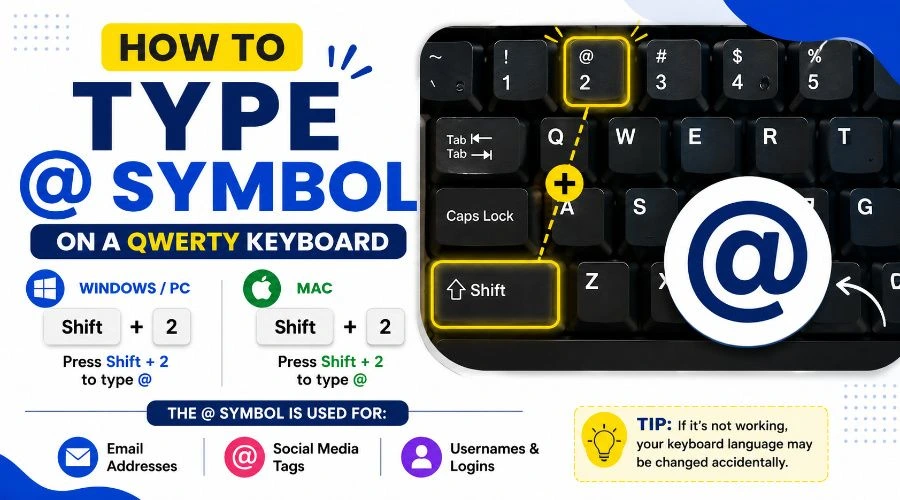
💡 Quick Answer: On a US QWERTY keyboard, press Shift + 2 to type @. On a UK keyboard, press Shift + ‘ (apostrophe). On Mac, press Shift + 2 or Option + 2 depending on your layout.
What Is the @ Symbol and Why Does Its Location Vary?
The @ symbol — officially called the at sign — has Unicode value U+0040 and HTML code @. It was originally used in commercial invoices to mean “at the rate of”, but today it is best known as the separator in every email address (user@domain.com) and as the mention character on social media platforms.
Its position on the keyboard is not fixed. Different countries place the at sign on different keys, which is why the same physical keyboard can behave differently depending on the operating system’s language setting. A computer configured for a US layout and one configured for a UK layout look identical on the outside, but pressing the same keys produces different characters.
Understanding this is the key to solving almost every “@” problem — it is almost always a keyboard layout mismatch, not a broken key.
Keyboard Symbols Explained — complete breakdown of every special character and how to type each one
How to Type @ on a US Keyboard (Windows)
On a standard US keyboard running Windows, the at sign is printed on the 2 key — above the number itself. This is the most common layout worldwide.
Main Shortcut — Shift + 2
- Place your cursorwhere you want the @ symbol to appear.
- Hold the Shift key(either left or right Shift).
- Press the 2 keyat the top of the keyboard.
- Release both keys. The@symbol appears.
Diameter Symbol — how to type the Ø sign on any device
Alternative Method — Alt Code (Windows Only)
If your Shift + 2 combination is not working, you can use the numeric keypad method:
- Turn on Num Lock(press the Num Lock key; the indicator light should turn on).
- Hold the Alt keyon your keyboard.
- Type 6 then 4on the numeric keypad (not the number row).
- Release Alt. The@symbol appears.
Quick Reference — Windows US Layout
| Method | Keys to Press | Works On |
|---|---|---|
| Main shortcut | Shift + 2 | All Windows keyboards (US layout) |
| Alt code | Alt + 64 (numpad) | Desktop keyboards with numpad |
| Copy & paste | Copy @ from browser | Any device, any layout |
How to Type @ on a UK Keyboard
The UK keyboard layout is one of the most common sources of confusion. On a UK keyboard, Shift + 2 does not type @ — it types the " (double quote) character instead. The @ symbol has been moved to a different key.
Main Shortcut — Shift + ‘ (Apostrophe)
On most UK keyboards, the @ symbol is printed on the apostrophe key, which sits just to the left of the Enter key.
- Hold Shift.
- Press the ‘ key(apostrophe / single quote), to the left of Enter.
- The @ symbol appears.
US vs UK Layout Comparison
| Layout | Key Combination for @ | Key Combination for " |
|---|---|---|
| US QWERTY | Shift + 2 | Shift + ' |
| UK QWERTY | Shift + ' | Shift + 2 |
| European (many) | AltGr + Q or AltGr + 2 | Shift + 2 |
If you are unsure which layout your computer uses, open Notepad and press Shift + 2. The character that appears will identify your layout.
How to Type @ on a Mac Keyboard
Mac keyboards follow the US layout by default, so the shortcut is the same as Windows US for most users. However, language settings and regional keyboard variants change things.
Main Shortcut — Shift + 2 (Mac US Layout)
- Hold Shift.
- Press 2 on the number row.
- The @ symbol appears.
Alternative — Option + 2 (Some Mac Layouts)
On Macs set to certain non-US layouts (for example, Spanish or French), the @ is reached with Option (⌥) + 2. The Option key on Mac is equivalent to Alt on Windows.
- Hold Option (⌥).
- Press 2.
- The @ symbol appears.
Finding the Em Dash on a Mac Keyboard — type — and other special characters on macOS.
Checking Your Mac Keyboard Layout
If neither shortcut works, check your active layout:
- Open System Settings (or System Preferences on older macOS).
- Go to Keyboard › Input Sources.
- Check which layout is selected. Switch to S. for Shift+2 to work.
- You can also enable the Keyboard Viewer (Show Input menu in menu bar) to see exactly which key produces which character.
| Mac Layout | Shortcut for @ |
|---|---|
| US English | Shift + 2 |
| UK English | Shift + ' |
| Spanish | Option + 2 |
| French | AltGr + à |
| German | AltGr + Q |
How to Type @ on a Laptop Keyboard
Laptops use the same layout as desktop keyboards, so the shortcuts above apply. However, laptops have some quirks worth knowing:
- No numeric keypad: The Alt+64 method does not work on most laptops. Stick with Shift+2.
- Fn key interference: Some laptops reassign keys with the Fn (Function) key. If Shift+2 produces something unexpected, check whether your Fn Lock is on.
- Country of purchase matters: A laptop bought in the UK has a UK keyboard layout. If the operating system was set up in US English, there will be a mismatch — fix it in your language settings.
- Sticky keys: If the Shift key is not registering, check that Sticky Keys (an accessibility feature) is not turned on.
Chromebook
Chromebooks use the US layout by default. Press Shift + 2 to type @. If you have changed the language settings, go to Settings › Advanced › Languages and inputs › Input methods to check your active layout.
Looking for more math symbols? Check out our guide to the [Not Equal Sign (≠)].
How to Type @ on a Mobile Phone or Tablet
Mobile keyboards do not show the @ symbol on the default letter layout. Here is how to find it on the most common mobile operating systems:
iPhone / iPad (iOS)
- Tap the text field to bring up the keyboard.
- Tap the 123 button in the bottom-left corner.
- The @ symbol appears directly on the number/symbol keyboard — tap it.
- In email fields, iOS keyboards often show@automatically on the default layout.
Android
- Tap the text field.
- Tap ? 123 (the label varies by keyboard app).
- The @ key is visible on the symbol layout — tap it.
How to Type @ on European Keyboards (AltGr Method)
Many European QWERTY and QWERTZ/AZERTY keyboards use a dedicated AltGr key (the right Alt key) to access symbols like @. The exact key that produces @ depends on the country layout:
| Country / Layout | Shortcut for @ | Key with @ Printed On It |
|---|---|---|
| Germany (QWERTZ) | AltGr + Q | Q key |
| France (AZERTY) | AltGr + à | à key (number 0 position) |
| Spain | AltGr + 2 | 2 key |
| Italy | AltGr + Q | Q key |
| Netherlands | AltGr + 2 | 2 key |
| Portugal | AltGr + 2 | 2 key |
The general rule: look at your keyboard physically. The @ symbol will be printed (usually in a different colour) on one of the keys. Hold AltGr and press that key.
Copy and Paste the @ Symbol — and Other Quick Methods
If your keyboard shortcut is not cooperating, these universal fallback methods always work:
Copy and Paste
@ — copy this symbol and paste it anywhere using Ctrl + V (Windows) or Cmd + V (Mac).
HTML and Unicode Reference
| Method | Code | Use Case |
|---|---|---|
| HTML entity | @ or @ | In HTML source code |
| Unicode point | U+0040 | Reference / documentation |
| Alt code (Windows) | Alt + 64 | Desktop keyboards with numpad |
| CSS content | content: '\0040' | In CSS ::before / ::after |
On-Screen Keyboard (Windows)
- PressWindows key + R, typeosk, press Enter.
- The on-screen keyboard appears. Click Shift then click 2 (or ‘ for UK) to type @.
- This also shows you exactly which key your current layout maps to @.
@ Symbol Not Working — Troubleshooting Guide
If pressing the expected keys does not produce @, one of the following causes is almost always responsible:
Problem 1: Wrong Keyboard Layout in Operating System
Symptom: Pressing Shift+2 types ” instead of @, or vice versa.
Fix (Windows): Go to Settings › Time & Language › Language & Region. Under your language, click the three dots and select Language options. Check which keyboard is listed under Keyboards. Remove the wrong one and add the correct layout (English US or English UK).
Fix (Mac): Open System Settings › Keyboard › Input Sources. Click the + button to add the correct layout. Select it from the menu bar input switcher.
Problem 2: @ and ” Are Swapped
Symptom: Shift+2 gives @ sometimes and ” other times, depending on which app is focused.
Fix: Some applications (particularly remote desktop or virtual machine software) override the keyboard layout. Check the language settings inside the remote session separately from your local settings.
Problem 3: The 2 Key Is Physically Broken
Symptom: The 2 key produces no input at all, or produces the wrong character consistently.
Fix: Use the on-screen keyboard (osk) as a temporary workaround. Press Windows+R, type osk, press Enter. For a permanent fix on a laptop, the key cap or the keyboard membrane may need replacing.
Problem 4: Fn Lock Is Active
Symptom: Keys on the number row produce function inputs (F1, F2…) instead of numbers/symbols.
Fix: Press Fn + Esc (or Fn + Fn Lock, depending on your laptop model) to toggle Fn Lock off. The number row should return to normal.
Problem 5: Sticky Keys or Filter Keys Are On
Symptom: Shift key does not seem to be held down when you press Shift+2.
Fix: Go to Settings › Accessibility › Keyboard (Windows) and make sure Sticky Keys and Filter Keys are turned off.
Quick Reference — How to Type @ on Every Device
| Device / OS | Layout | Shortcut for @ |
|---|---|---|
| Windows PC | US QWERTY | Shift + 2 |
| Windows PC | UK QWERTY | Shift + ' |
| Windows PC | European | AltGr + Q or AltGr + 2 |
| Mac | US | Shift + 2 |
| Mac | UK | Shift + ' |
| Mac | Spanish / French | Option + 2 |
| Laptop (US) | US QWERTY | Shift + 2 |
| Laptop (UK) | UK QWERTY | Shift + ' |
| Chromebook | US (default) | Shift + 2 |
| iPhone / iPad | Any | Tap 123, then @ |
| Android | Any | Tap ?123, then @ |
| Any device | Any | Alt + 64 (numpad) or copy & paste @ |
Close Tab Shortcut — press Ctrl+W on Windows or Cmd+W on Mac to close tabs instantly