
If your laptop keyboard is not working, the problem may be caused by a temporary software issue, an incorrect setting, dirt or debris, physical damage, a loose internal connection, or another hardware problem. In some cases, the issue is related to a keyboard driver or software problem rather than the keyboard itself.
If the built-in keyboard is not typing or the keyboard is not responding, start with a few simple checks. Restart the laptop, check the keys for visible physical problems, test an external keyboard if available, and then troubleshoot the keyboard driver and Windows settings. These steps can help determine whether the problem is caused by software or hardware.
For broader troubleshooting steps that apply to different keyboard problems, see Why Is My Keyboard Not Working?
Quick Symptom-Based Diagnosis
Not sure which fix to try first? Use the symptoms below to narrow down the likely cause of your laptop keyboard problem.
| Symptom | Likely Cause | What to Try |
|---|---|---|
| No keys work at all | Keyboard driver, Windows issue, or hardware problem | Restart Windows, check the keyboard driver, and test an external keyboard |
| Only a few keys don’t work | Dust, debris, stuck keys, or damaged key mechanism | Clean the keyboard and inspect the affected keys for physical damage |
| Keys type the wrong characters | Incorrect keyboard layout or input language | Check Windows keyboard settings and select the correct QWERTY layout |
| F1–F12 keys behave differently | Fn Lock or function-row settings | Check the Fn key and toggle Fn Lock |
| Letters type numbers | Num Lock is enabled | Turn off Num Lock and test the keyboard again |
| Typing is slow or unresponsive | Filter Keys, software problem, or driver issue | Turn off Filter Keys, restart Windows, and check the keyboard driver |
| Keyboard stopped working after an update | Driver or Windows compatibility problem | Check Windows Update and consider a driver rollback |
| External keyboard works but built-in keyboard doesn’t | Built-in keyboard, ribbon cable, or other keyboard hardware problem | Inspect the internal connection or seek professional repair |
| External keyboard also doesn’t work | Windows, driver, settings, or broader system problem | Check Device Manager, drivers, Windows settings, and updates |
| Keyboard stopped working after a spill | Liquid damage | Turn off the laptop and seek professional inspection |
| Keyboard works intermittently | Loose keyboard connector, damaged cable, driver issue, or hardware failure | Check drivers first; if the issue persists, have the internal connection inspected |
| Keys feel physically stuck or loose | Crumbs, dust, debris, or damaged key mechanism | Clean carefully with compressed air and inspect the affected keys |
Why Is My Laptop Keyboard Not Working?
A laptop keyboard can stop working for several reasons, ranging from simple Windows settings to a physical hardware problem. Before replacing the keyboard or opening the laptop, it helps to identify the likely cause.
Software and Driver Problems
A faulty keyboard driver is one possible reason a laptop keyboard stops responding. An outdated driver or corrupted driver can prevent Windows from communicating correctly with the built-in keyboard.
You can check the keyboard in Device Manager and look for driver-related problems. Installing available updates through Windows Update may also resolve compatibility issues. In some cases, a recent application, update, or system change can create a software conflict that affects keyboard input.
Dirt, Dust, and Stuck Keys
Everyday use can allow dust, dirt, crumbs, and other debris to collect underneath or between the keys. This buildup can interfere with the key mechanism and cause individual stuck keys or keys that do not register correctly.
On some laptops, debris can also affect the keyboard membrane, making certain keys difficult to press or preventing them from responding consistently. Cleaning the keyboard carefully can sometimes resolve these problems.
Physical Damage or Liquid Spills
Damaged keys or other physical damage can cause part or all of the laptop keyboard to stop working. A dropped laptop, excessive pressure, or accidental damage may affect the keyboard mechanism or its internal components.
Liquid damage is another common cause of keyboard failure. A water spill or other liquid entering the keyboard can damage electrical components and may result in a completely damaged keyboard. If a significant spill has occurred, avoid repeatedly testing the keyboard because this can make the problem worse.
Loose Keyboard Cable or Internal Connection
The laptop keyboard communicates with the motherboard through an internal connection. If the keyboard ribbon cable becomes loose or the keyboard connector is not seated properly, the keyboard may stop working or only some keys may respond.
A loose connection can occur after a repair, accidental impact, or disassembly of the laptop. Because accessing the motherboard and internal components usually requires opening the laptop, this type of internal connection problem may require professional repair if you are not comfortable working inside a laptop.
Keyboard Settings or Layout Problems
Sometimes the keyboard is physically fine, but keyboard settings prevent it from working as expected. An incorrect keyboard layout or input language can make keys produce unexpected characters or appear to be malfunctioning.
Windows accessibility settings can also affect keyboard behavior. Features such as Filter Keys and Sticky Keys may change how keystrokes are registered. On laptops with a numeric keypad, Num Lock can also change the behavior of certain keys, while Fn Lock may affect function-key operations.
Battery or Power-Related Problems
A serious power or battery issue can sometimes affect internal laptop components, including the keyboard. A failing laptop battery, battery overheating, or a swollen battery can indicate a broader power issue that should not be ignored.
A swollen battery can physically press against internal components and potentially cause an internal hardware problem. If you notice unusual swelling, overheating, or other signs of battery failure, stop using the laptop and have it inspected by a qualified technician.
How to Fix a Laptop Keyboard That Isn’t Working
Try the following fixes in order, starting with the simplest solutions. Many laptop keyboard problems are caused by temporary software issues, settings, drivers, or connected devices and can be resolved without replacing the keyboard.
1. Restart Your Laptop
A simple restart or reboot can fix a temporary software glitch that prevents the keyboard from responding. A frozen application or Windows process may also interfere with keyboard input.
Save your work, restart Windows, and test the keyboard again after the laptop boots.
2. Disconnect External Devices
Disconnect unnecessary USB devices, a docking station, USB hub, external monitor, external keyboard, and other peripheral devices from your laptop.
In some cases, a connected device or its driver can interfere with keyboard input. Removing peripherals helps determine whether another device is causing the problem. After disconnecting them, restart the laptop and test the built-in keyboard.
3. Inspect Your Laptop Keyboard for Dirt or Damage
Inspect the keyboard for dust, crumbs, and other debris that may be preventing keys from registering properly. Pay particular attention to stuck keys, loose keys, and damaged keys.
Small particles can interfere with the keyboard membrane or the mechanism underneath individual keys. Use compressed air carefully to remove loose debris, and wipe the surface with a dry microfiber cloth. For detailed cleaning instructions, see How to Clean a Keyboard.
If only certain keys are affected, inspect those keys for physical damage or signs that they have become loose. For more information about individual keys and their functions, see Laptop Keyboard Keys.
4. Check Fn Lock and Num Lock
Laptop keyboards often use special key combinations that change how certain keys behave. Check the Fn key, Fn Lock, and Num Lock if some keys appear not to work correctly.
Fn Lock can change the behavior of the function row, including F1–F12, while Num Lock can activate or deactivate an embedded numeric keypad on laptops that have one. Some laptops also use letter keys as numbers when Num Lock is enabled.
Try pressing the appropriate Fn Lock or Num Lock combination for your laptop and test the affected keys again. If you are unsure what the different keys on your laptop do, see Laptop Keyboard Keys for an explanation of common laptop keyboard keys and functions.
5. Check the Keyboard Layout and Language
If the keys work but produce wrong characters, the problem may be related to the keyboard layout or language settings rather than the physical keyboard.
Check the selected input language and make sure the correct layout is enabled. For example, a QWERTY keyboard can produce unexpected characters if Windows is configured with a different layout.
Open Windows keyboard settings, select the appropriate language and keyboard layout, and then test the keys again. If you want to understand how different keyboard layouts arrange keys and characters, see Keyboard Layout Explained.
6. Turn Off Filter Keys and Sticky Keys
Windows includes accessibility features that can change how keyboard input is processed. If typing feels slow or unresponsive, or keys behave differently when pressed repeatedly or held down, check Windows Accessibility settings.
Filter Keys can ignore or modify repeated keystrokes, while Sticky Keys changes how keyboard shortcuts work by allowing modifier keys to be pressed separately.
Turn off Filter Keys and Sticky Keys temporarily and test the keyboard. If normal typing returns, one of these settings was likely affecting keyboard behavior.
7. Update or Reinstall the Keyboard Driver
A faulty keyboard driver can prevent Windows from communicating correctly with the laptop keyboard. This may happen because of a driver conflict, an outdated driver, or a corrupted driver.
Open Device Manager and expand Keyboards. Look for your keyboard device, which may appear as Standard PS/2 Keyboard, HID Keyboard Device, or another manufacturer-specific entry.
Right-click the device and choose Update driver. If updating does not resolve the problem, you can choose Uninstall device and then restart Windows. Windows will typically detect the keyboard and attempt to reinstall the driver automatically.
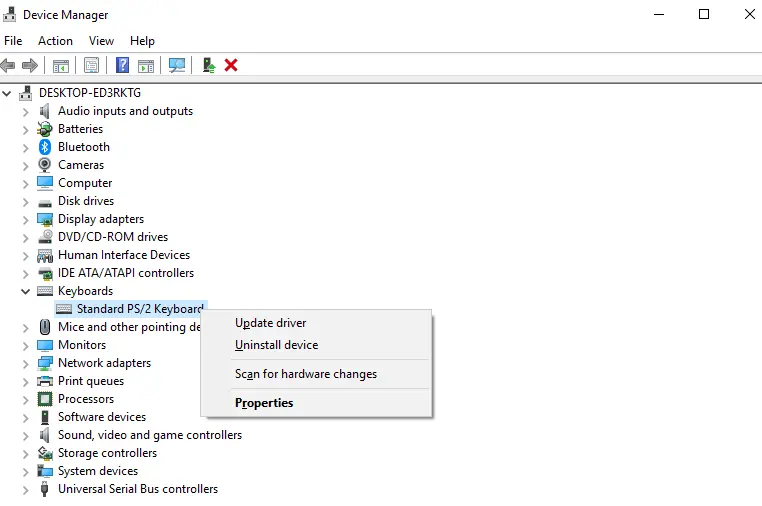
This process can resolve driver-related keyboard problems without requiring you to replace the physical keyboard.
8. Check for Windows Updates
Open Windows Update and check for pending updates and available system updates. Microsoft updates can include compatibility improvements and driver updates that may resolve keyboard-related problems.
Installing the latest updates can also address compatibility problems between Windows and laptop hardware.
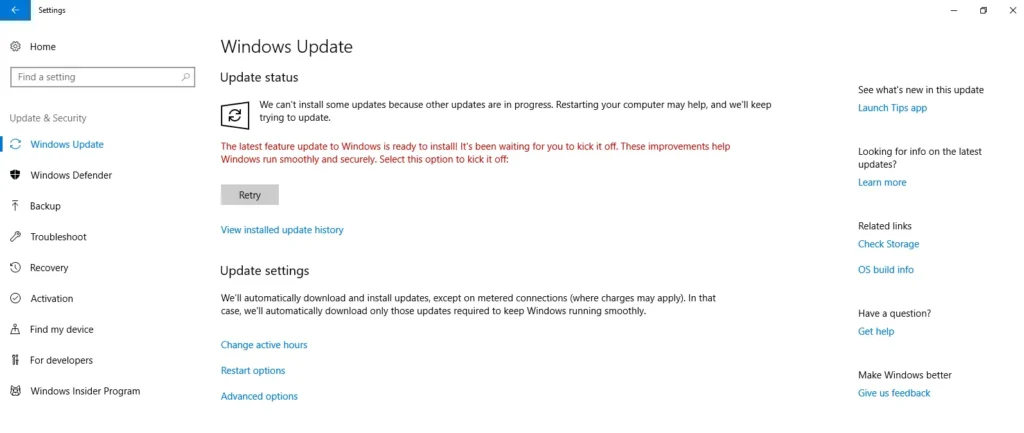
However, if the keyboard problem started immediately after an update, the recent change may be responsible. In that situation, investigate available driver rollback options or reverse the recent change if Windows provides that option.
9. Test Your Laptop With an External Keyboard
Connect an external keyboard to determine whether the problem is limited to the laptop’s built-in keyboard. You can use a USB keyboard or, if supported, a Bluetooth keyboard.
If the external keyboard works, Windows can receive keyboard input, so investigate the built-in keyboard, its connection, or other keyboard hardware. The issue may be with the physical keyboard rather than the operating system.
If the external keyboard also doesn’t work, investigate Windows settings, the keyboard driver, device detection, or a broader system problem.
This simple test helps separate a possible hardware failure from a software-related keyboard problem.
10. Run a Laptop Hardware Diagnostic
Many laptop manufacturers provide built-in or downloadable hardware diagnostic tools that can test components such as the keyboard.
Run a keyboard test through your laptop manufacturer’s diagnostic software and review the diagnostic results. Depending on the manufacturer, you may find tools such as Dell SupportAssist, HP diagnostics, or Lenovo diagnostics.
If the test reports a keyboard hardware failure, the problem is more likely to require physical repair or keyboard replacement rather than another Windows setting change.
11. Check the Internal Keyboard Connection
If none of the previous fixes work, the problem may involve the laptop’s internal keyboard connection. The keyboard usually connects to the motherboard through a ribbon cable or keyboard cable attached to a keyboard connector.
A loose connection, damaged cable, or damaged connector can prevent the internal keyboard from communicating with the laptop.
Opening a laptop to inspect the connection can be complicated because internal components are delicate. Incorrect handling can damage the motherboard, keyboard connector, or other components. It may also affect warranty coverage on some laptops.
If you suspect a loose or damaged internal connection and are not experienced with laptop repairs, professional repair is usually the safer option.
Laptop Keyboard Problems and What They Mean
Different keyboard symptoms can point to different causes. Identifying exactly how your laptop keyboard is behaving can help you choose the right troubleshooting step instead of trying every fix.
Laptop Keyboard Completely Stopped Working
If all keys are unresponsive, you may be dealing with a sudden keyboard failure caused by a driver/software issue, Windows problem, internal connection, or hardware failure.
Start by restarting the laptop and checking the keyboard driver. You can also perform an external keyboard test using a USB or Bluetooth keyboard. If the external keyboard works while the built-in keyboard does not, the problem is more likely related to the laptop’s keyboard hardware or internal connection.
For broader troubleshooting steps, see Why Is My Keyboard Not Working?
Only Some Laptop Keyboard Keys Are Not Working
When only certain individual keys or a group of keys stop responding, the cause is often more localized. Debris, stuck keys, or physical damage can prevent specific keys from registering correctly.
Inspect the affected area for dust, crumbs, or other debris. A damaged membrane or other physical damage can also cause individual keys to fail. If several nearby keys stop working at the same time, the problem may involve the keyboard connector or another internal component.
For more information about individual keys, their functions, and common key problems, see Laptop Keyboard Keys.
Laptop Keyboard Types the Wrong Characters
If the keyboard responds but produces wrong characters, check the keyboard layout, input language, and keyboard settings in Windows.
An incorrect regional layout can cause the keys to produce different characters from the symbols printed on the keyboard. Num Lock can also change the behavior of certain laptop keys, particularly on keyboards with an embedded number pad.
Make sure the correct language and keyboard layout are selected before assuming the physical keyboard is damaged.
Laptop Keyboard Types Multiple Characters
If pressing a key produces repeated characters, the problem may be caused by stuck keys, incorrect sensitivity settings, or a keyboard hardware issue.
Windows Filter Keys can also affect how repeated keystrokes are processed. If the problem began after changing Windows settings or installing software, a driver or settings issue may be responsible.
Check the affected keys for physical obstruction and review Filter Keys before moving on to driver troubleshooting. If the keys continue to register repeated or unexpected input, you can use a Keyboard Tester to check whether individual key presses are being detected correctly.
Laptop Keyboard Is Slow or Lagging
A noticeable input lag can make keyboard typing feel delayed or inconsistent. Possible causes include Filter Keys, software problems, driver problems, or a temporary Windows issue.
First, restart Windows and check whether the delay disappears. If the problem continues, review Filter Keys and check the keyboard driver in Device Manager. Testing with an external keyboard can also help determine whether the lag is limited to the built-in keyboard.
If you want to measure whether your keyboard is responding with noticeable delay, try a Keyboard Latency Test. You can also use a Keyboard Polling Rate Test to check how frequently the keyboard reports input to the computer.
Laptop Function Keys Are Not Working
If F1–F12 keys do not perform their expected functions, check the Fn key and Fn Lock settings. Many laptops use the function row for both standard F-key commands and special hardware controls.
Depending on the laptop, these keys may control multimedia keys, brightness, volume, wireless connectivity, or other hardware features. The behavior can vary because of manufacturer-specific function-key settings.
Try pressing the appropriate Fn Lock combination and check the manufacturer’s keyboard or function-key settings if the F1–F12 keys still do not behave as expected.
What If an External Keyboard Works but the Laptop Keyboard Doesn’t?
If an external keyboard works normally but the built-in laptop keyboard does not respond, the problem is more likely to be related to the laptop’s internal keyboard or its connection.
Possible causes include a faulty built-in keyboard, damaged keyboard ribbon cable, loose keyboard connector, physical or liquid damage, or a problem with the keyboard membrane. A laptop-specific driver or device issue can also prevent the built-in keyboard from working correctly.
If Windows recognizes the external keyboard and it works normally, test the built-in keyboard after checking the driver and Windows settings. If the problem continues, the internal keyboard or its connection may need professional inspection.
Can a Laptop Keyboard Be Replaced?
Yes, a laptop keyboard can usually be replaced, but the replacement process depends heavily on the laptop’s design.
A keyboard may need replacement if it is physically damaged, has failed completely, or has multiple keys that no longer work. Replacement parts must be compatible with the specific laptop brand, model, keyboard layout, and configuration.
Some laptops have a separate removable keyboard, while others use an integrated keyboard or top-case assembly that contains additional components. Because laptop construction varies significantly between models, there is no universal DIY replacement procedure.
If the keyboard is integrated into the laptop’s top case or requires extensive disassembly, professional repair can help avoid damage to internal components.
Laptop Keyboard Replacement Cost
The cost of laptop keyboard replacement depends on the laptop model and the type of replacement required.
Factors that can affect the price include:
- Laptop brand and model
- Availability and cost of replacement parts
- Repair labor
- Whether the keyboard is removable or integrated into a top-case assembly
- Whether it has a backlit keyboard
- The extent of physical or liquid damage
For a broader breakdown of what affects repair and replacement pricing, see Replacement Cost.
In some cases, replacing only the keyboard may be relatively straightforward. In others, an integrated top-case assembly or additional damaged components can make the repair more expensive.
When Should You Get a Laptop Keyboard Repaired?
If basic software and settings troubleshooting does not restore the keyboard, it may be time to have the laptop professionally inspected.
Consider professional repair when the laptop has:
- Liquid damage
- A damaged keyboard ribbon cable
- A loose or damaged keyboard connector
- Multiple keys that have stopped working
- Severe physical damage
- A swollen battery
- A persistent hardware failure
- A keyboard that remains unusable after driver, Windows, and settings troubleshooting
Avoid opening the laptop yourself if you are unfamiliar with its internal components. A damaged connector, ribbon cable, motherboard, or battery can create additional problems if handled incorrectly.
Frequently Asked Questions
Why is my laptop keyboard not working?
A laptop keyboard may stop working because of a temporary software problem, incorrect keyboard settings, a faulty or corrupted driver, dirt or debris, physical damage, liquid damage, or an internal connection problem. Restarting the laptop and checking the keyboard driver and settings can help identify the cause.
Why is only part of my laptop keyboard working?
If only some keys work, the affected keys may have dirt, debris, physical damage, or a damaged key mechanism. A keyboard membrane or internal connection problem can also affect groups of keys. Inspect and clean the affected area, then consider hardware diagnostics if the problem continues.
How do I unlock my laptop keyboard?
There is no universal keyboard unlock shortcut for every laptop. Check whether Fn Lock, Num Lock, Filter Keys, or another keyboard setting is affecting input. The correct Fn Lock combination can vary by laptop manufacturer and model.
Why is my laptop keyboard typing the wrong characters?
Wrong characters are often caused by an incorrect keyboard layout or input language in Windows. Check the selected language and keyboard layout and make sure they match the physical keyboard.
What if an external keyboard works but my laptop keyboard doesn’t?
If an external keyboard works normally, Windows can receive keyboard input, so the problem may be limited to the built-in keyboard, its driver, ribbon cable, connector, or other internal hardware. If software troubleshooting does not help, the laptop keyboard may need professional inspection.
Can a laptop keyboard be replaced?
Yes. A damaged or failed laptop keyboard can usually be replaced, but the procedure and replacement parts depend on the laptop’s specific model. Some laptops use removable keyboards, while others integrate the keyboard into a larger top-case assembly.
Can a battery problem cause a laptop keyboard to stop working?
A serious battery problem can sometimes affect laptop operation, particularly if the battery is swollen and putting pressure on internal components. If you notice a swollen battery, stop using the laptop and have it inspected by a qualified technician rather than attempting to remove it yourself.
Will a factory reset fix my laptop keyboard?
A factory reset may resolve some serious software or Windows configuration problems, but it will not repair physical keyboard damage, a faulty keyboard membrane, a damaged ribbon cable, or a loose internal connector. Try less destructive software troubleshooting steps before considering a factory reset.